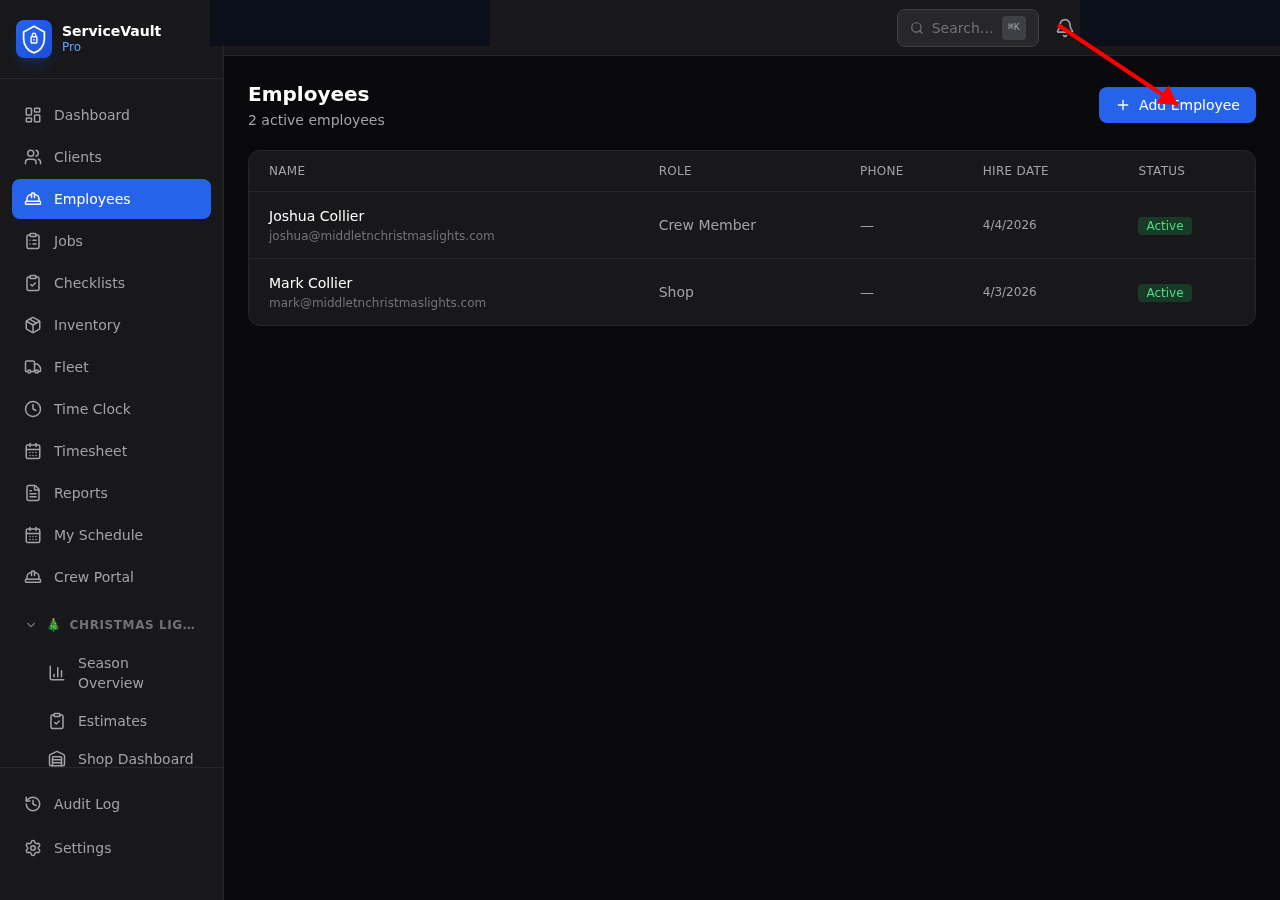
Creating a New User
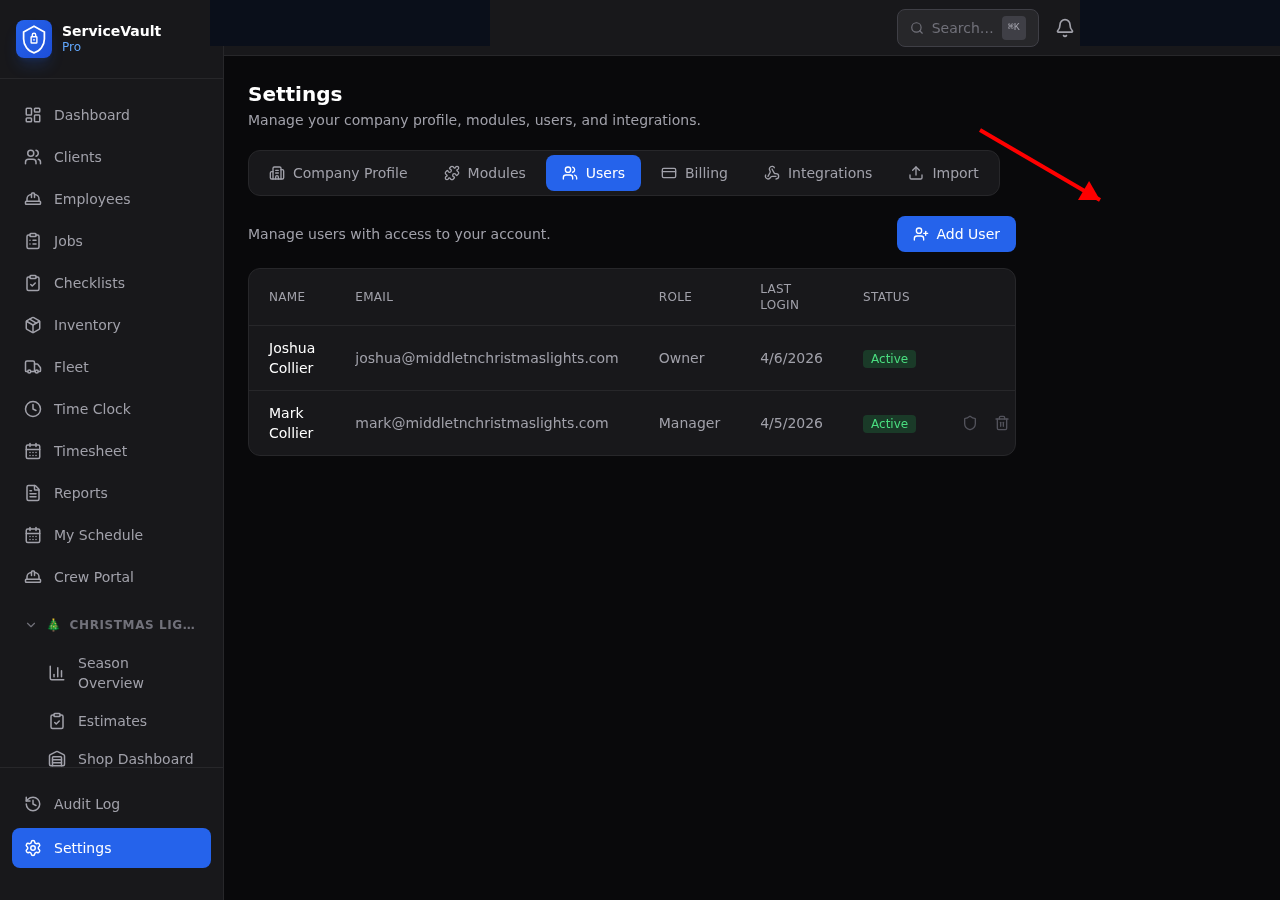
- Go to Settings → Users
- Click Add User
- Enter their first name, last name, email, and a password
- Choose a role (Owner, Manager, or Employee)
- Click Create User
Setting Permissions
After creating a user, click the shield icon next to their name to customize what they can see and do. You can use a preset (Manager, Office Admin, Field Employee) or customize every checkbox individually.
Quick Presets
- Manager — Crew, jobs, fleet, inventory, reports. No billing or settings.
- Office Admin — Everything except billing and modules.
- Field Employee — Own time, assigned jobs, clock in/out only.