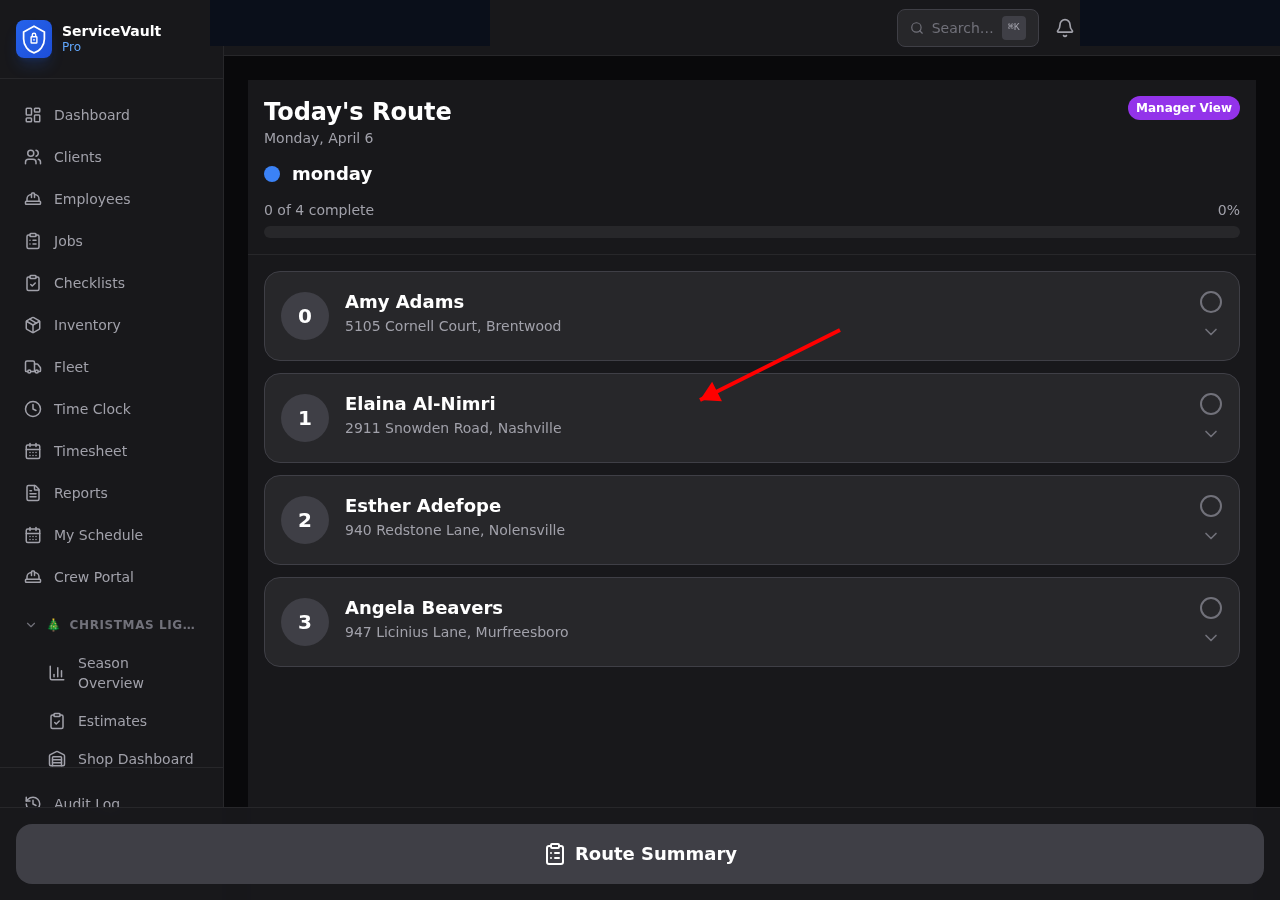
Opening Crew Field View
Go to Lawncare → Crew on your phone or tablet. You'll see today's route with all assigned stops in order.
Working Through Stops
For each stop:
- Tap Arrive when you pull up to the property — logs your arrival time
- Tap Start when you begin mowing — starts the timer
- Tap Complete when finished — stops the timer and records actual minutes
Skipping a Stop
Tap Skip and select a reason (rain, locked gate, no access, client request, etc.). Skips are recorded and feed into the Skipped Cuts report so you can track revenue lost to weather and cancellations.
Field Notes
After completing a stop, add any notes: lawn issues you noticed, gate code changed, dog was out, left side needs trimming next visit, etc. Notes are attached to the crew log and visible in the client record.
GPS Logging
When you tap Arrive, Start, or Complete, your GPS coordinates are captured (if location permission is granted). This creates a timestamped audit trail for each visit.
Property Specs in the Field
Tap the info icon on any stop to view that property's specs: mow height, gate code, dog warning, obstacles, and any special instructions. All the info you need without calling the office.