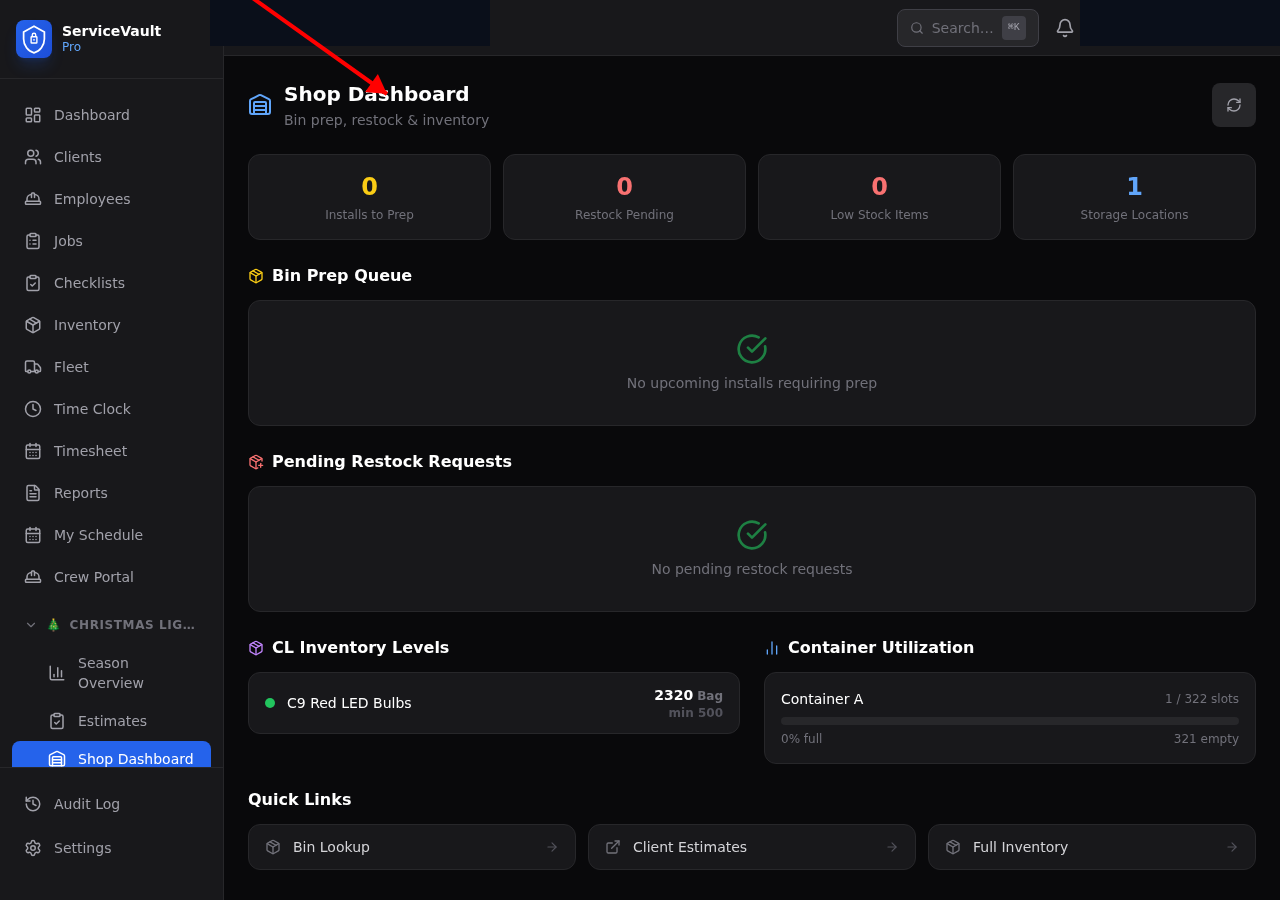
Accessing the Shop Dashboard
Click Shop in the Christmas Lights section of the sidebar.
Bin Prep Queue
The bin prep queue is the heart of the shop. It shows all bins and their current status in the prep workflow:
- Stored — Still in the storage location. Someone needs to pull it.
- Pulled — Pulled from storage and brought to the shop. Ready to be prepped.
- Prepped — Contents verified, lights tested, everything ready. Can be loaded.
- On Truck — Loaded on the install vehicle and headed to the job site.
Click on a bin to update its status to the next step. The queue updates in real time so everyone on the team can see progress.
Restock Requests
When crews in the field need supplies, they submit restock requests. These show up on the Shop Dashboard so shop staff can see what's needed and fulfill requests. See Restock Requests for details.
Inventory Levels
The Shop Dashboard shows a quick summary of Christmas Lights inventory levels — bulbs, clips, wire, and other consumables. Items below their minimum stock threshold are highlighted in red.
Container Utilization
See at a glance how full each storage location is — how many bin slots are occupied vs. available. This helps you plan when you need more storage space.