Starting a Takedown
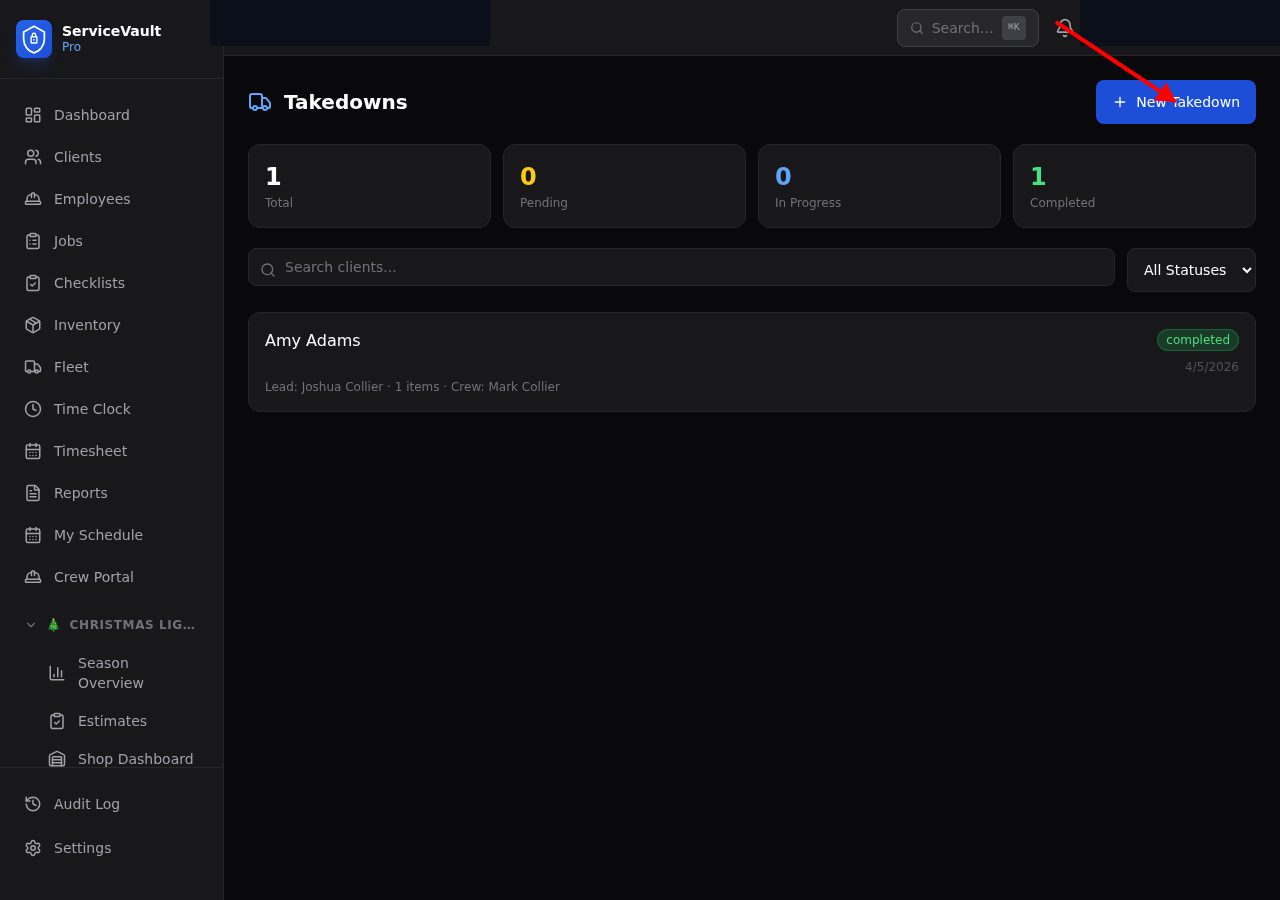
- Go to Takedowns in the sidebar
- Click New Takedown
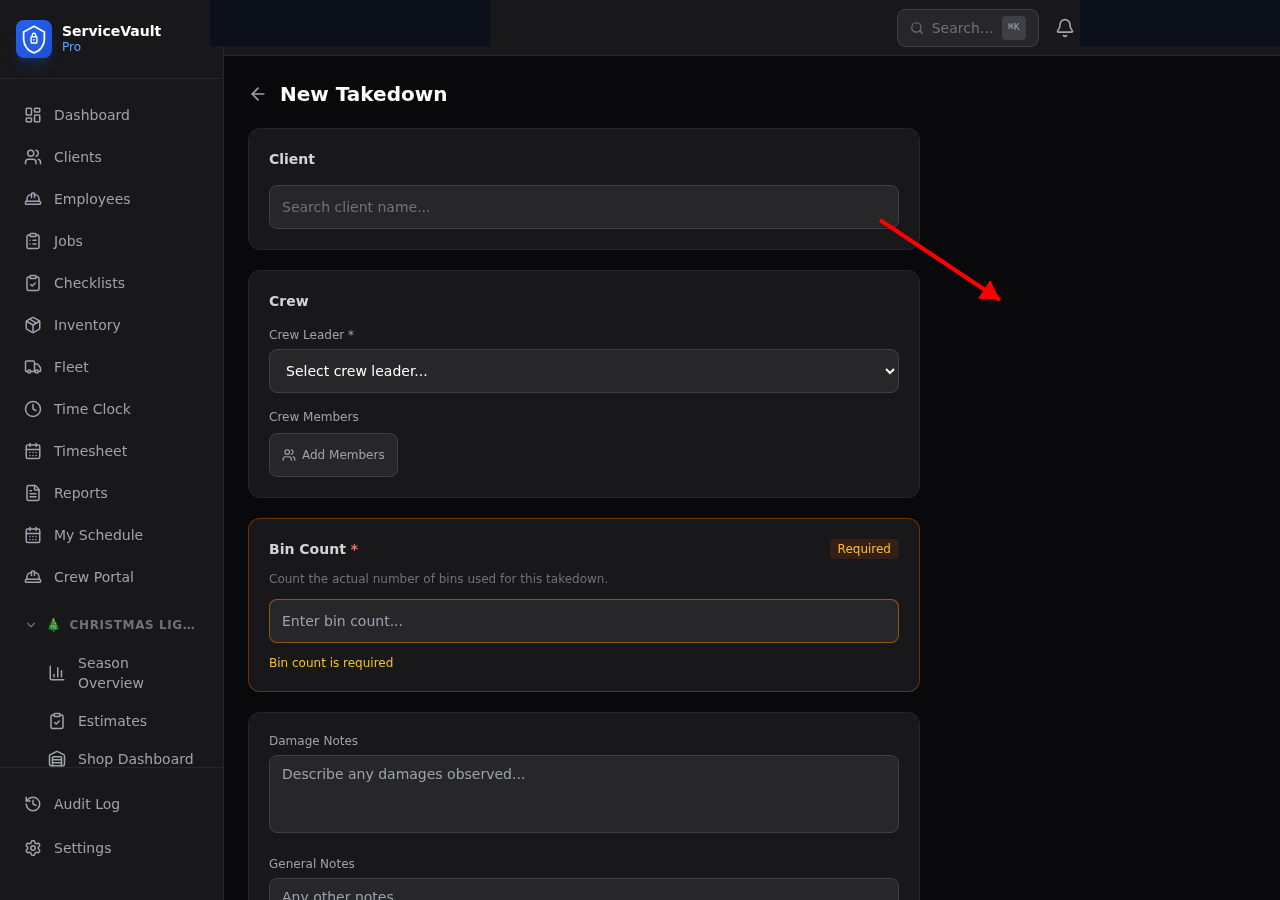
- Select the client
- Enter the crew leader name and crew members
- Click Create
Recording Items
On the takedown detail page, add each item that was removed from the house:
- Item Type — C9, Mini, Garland, Wreath, Timer, Wire, or Other
- Color — The color is locked based on what was installed (from the client's bin contents). This prevents mix-ups.
- Quantity — How many of that item were taken down
- Size — For items like wreaths or garland lengths
- Condition — Good, Damaged, or Missing
- Notes — Any additional details
Bin Count
Record the total number of bins used to pack the client's lights. This helps the shop team know what to expect when the bins come back.
Damage Notes & Photos
If anything was damaged during takedown, add damage notes. You can also attach photos for documentation.
Completing the Takedown
Once everything is recorded, mark the takedown as Completed. The status updates on the Season Dashboard and Map View automatically.
Inventory Reconciliation
After a takedown, the items recorded are compared against what was in the bin originally. This helps identify missing or damaged items so you can restock before next season.