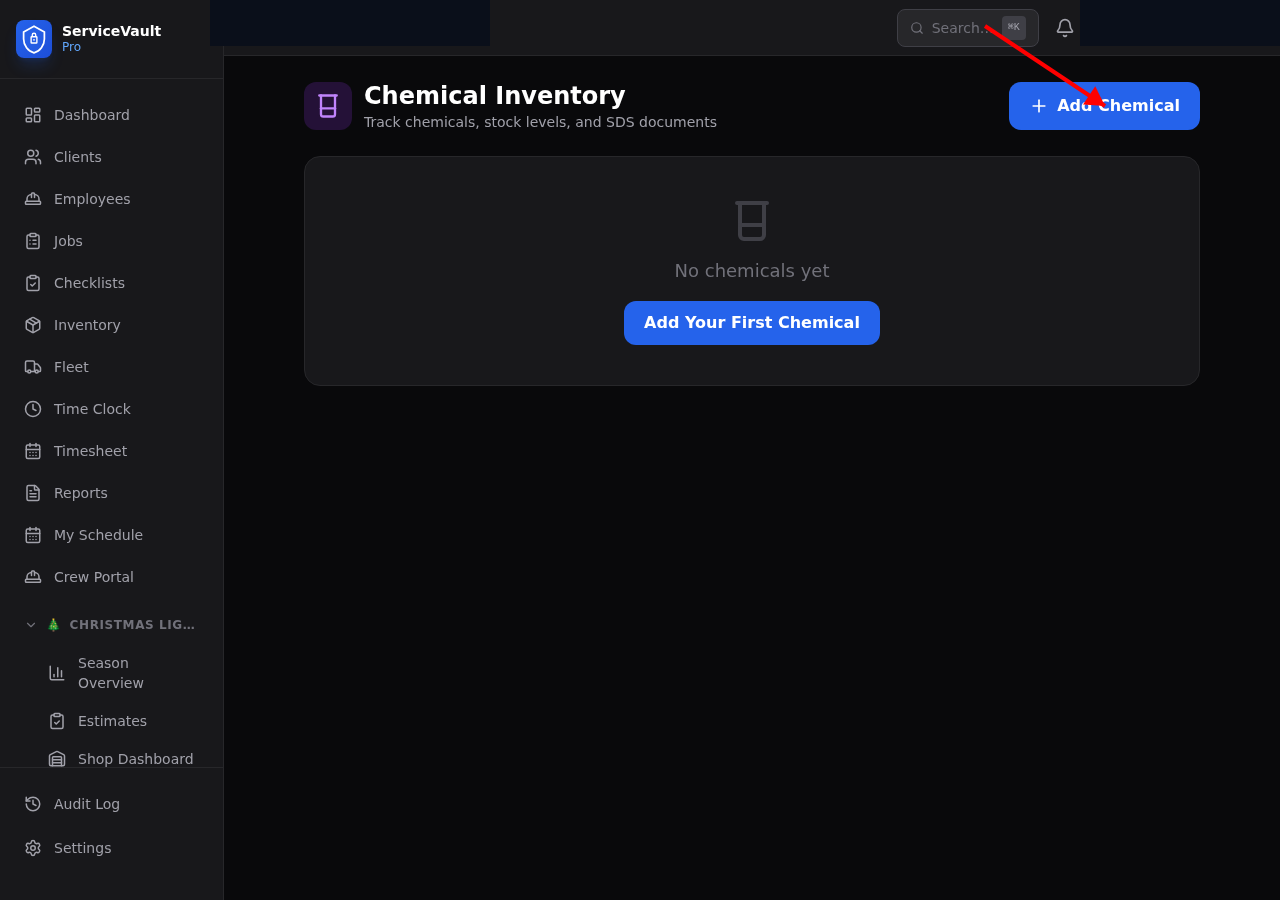
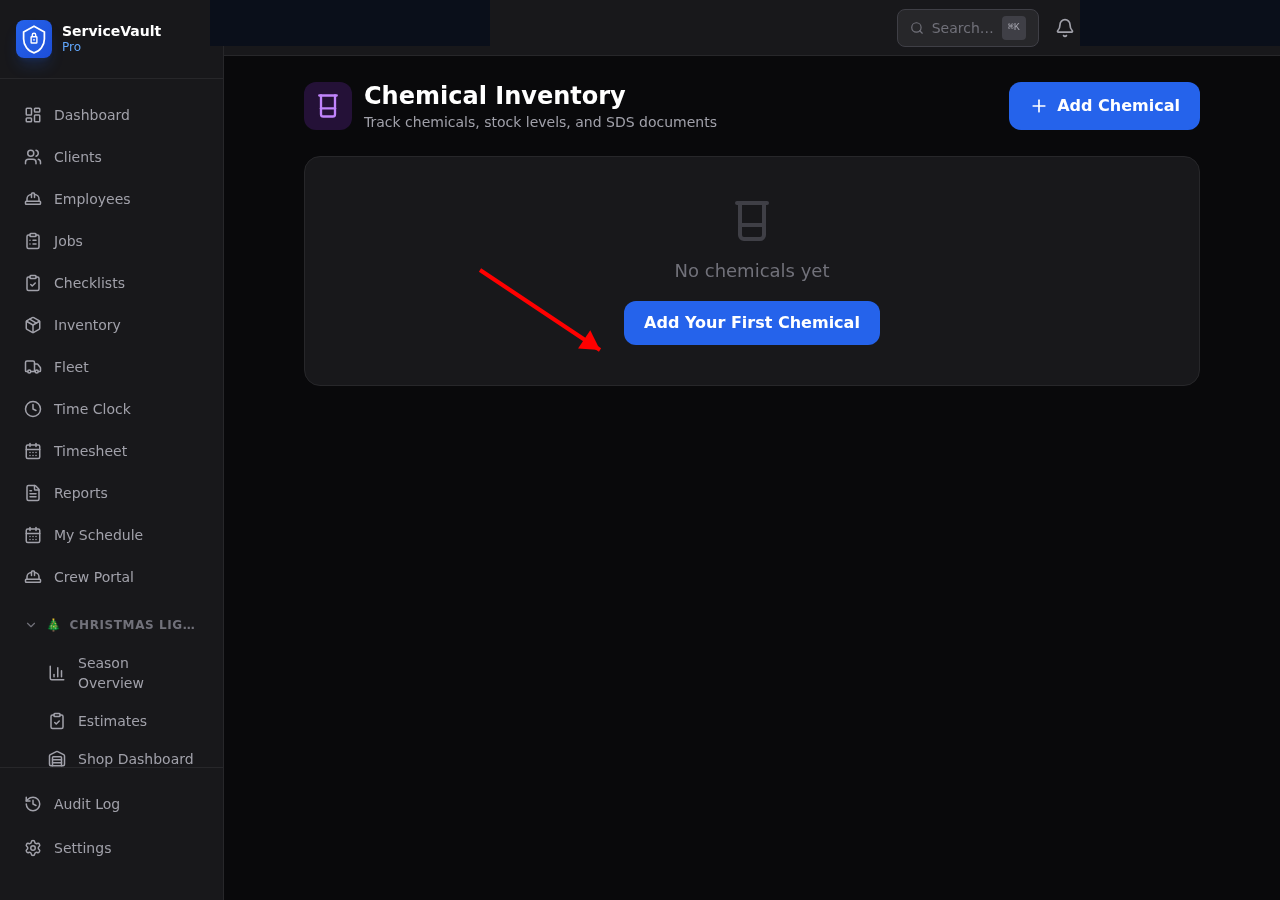
Adding a Chemical
- Go to Pressure Washing → Chemicals
- Click Add Chemical
- Select the type: Sodium Hypochlorite (SH), Surfactant, Pre-Carb, Oxalic Acid, or Custom
- Enter the name, current stock (gallons/lbs), cost per unit, and supplier
- For SH, enter the purchase date and original strength (%) — the app will calculate estimated current strength automatically
- Click Save
SH Strength Tracking
Sodium hypochlorite degrades at approximately 1% per week after purchase. Enter the original strength and purchase date, and ServiceVault Pro continuously calculates the estimated current strength. This feeds directly into the Mix Ratio Calculator to ensure accurate dilutions.
Uploading Safety Data Sheets (SDS)
Click the SDS button on any chemical card to upload a PDF of the Safety Data Sheet. Stored SDS documents are accessible to your crew from the job site — no hunting for binders.
Stock Levels & Reorder Alerts
Set a reorder threshold for each chemical. When stock drops below the threshold, the chemical is highlighted in red and appears in the dashboard alert panel. Update stock levels manually after purchasing, or let the batch log auto-deduct after each mix.