Enabling the Pressure Washing Module
Go to Settings → Modules and toggle Pressure Washing on. The PW section will appear in the sidebar immediately. Only Owners and Admins can enable or disable modules.
What's Included
Once enabled, you'll have access to the full Pressure Washing suite:
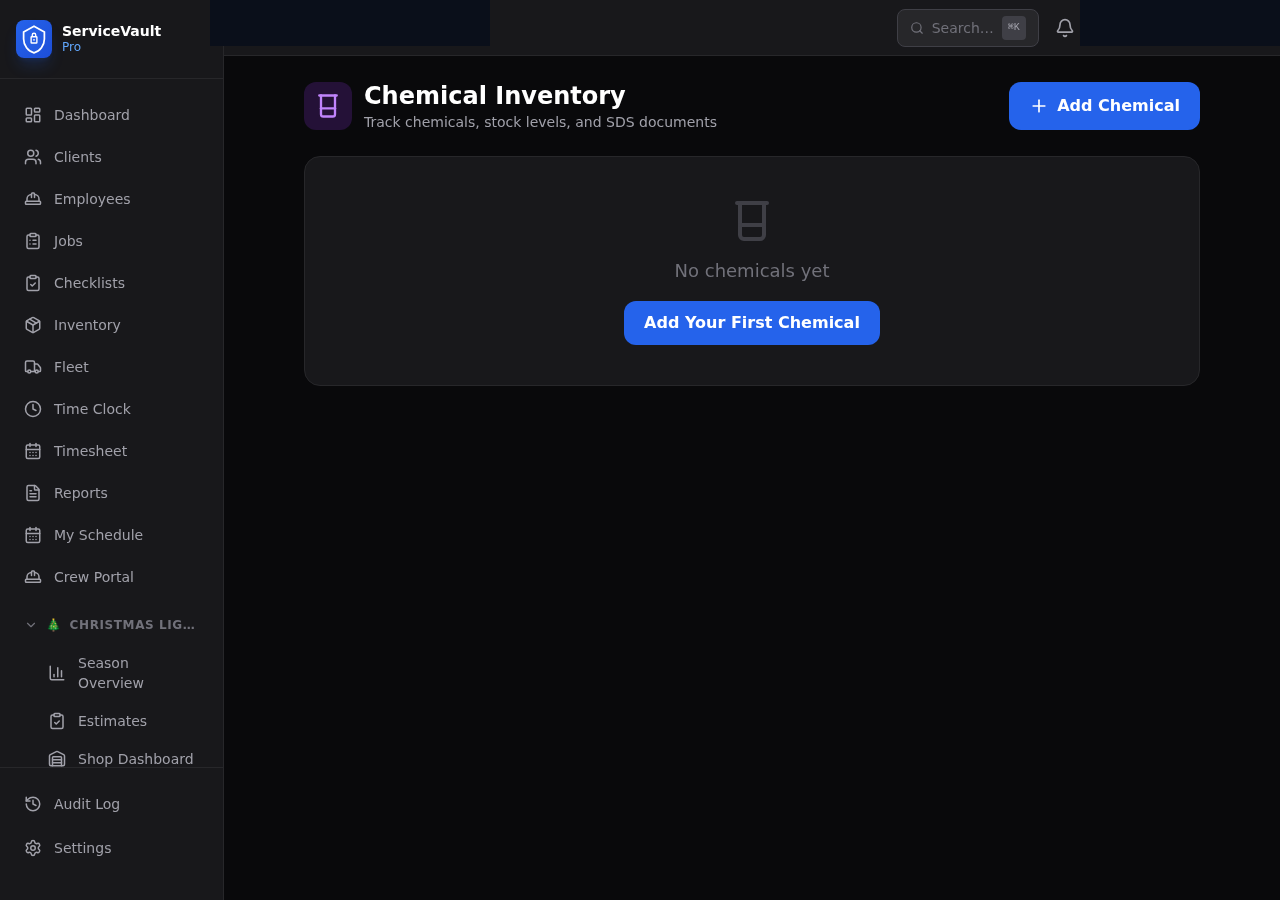
- Chemicals — Inventory, SDS uploads, SH strength tracking, reorder alerts
- Calculator — Mix ratio calculator with batch logging and auto inventory deduction
- Equipment — Pressure washers, hoses, tips, injectors, tanks, surface cleaners with maintenance scheduling
- Estimates — Multi-surface quoting with chemical cost estimates and before/after photos
- Checklists — Phase-based job checklists (Start of Day through End of Day)
- Job Site Assessment — Pre-job and post-wash inspection, damage documentation, weather check
- Client Specs — Property details, wash frequency, and "Due for Service" tracking
- Service History — Full timeline of completed PW jobs with photos and data
- Dashboard — PW-specific metrics and upcoming work
- Reports — Chemical usage, cost per sq ft, equipment costs, revenue analysis
Sidebar Navigation
All PW features live under a collapsible Pressure Washing section in the sidebar. Click the header to expand or collapse it. Sub-items include Chemicals, Calculator, Equipment, Estimates, Checklists, and Reports.
Plan Limits
Some plan tiers limit the number of chemicals, equipment records, or estimates you can store. Check Settings → Billing to see your current plan's limits and upgrade if needed.